
































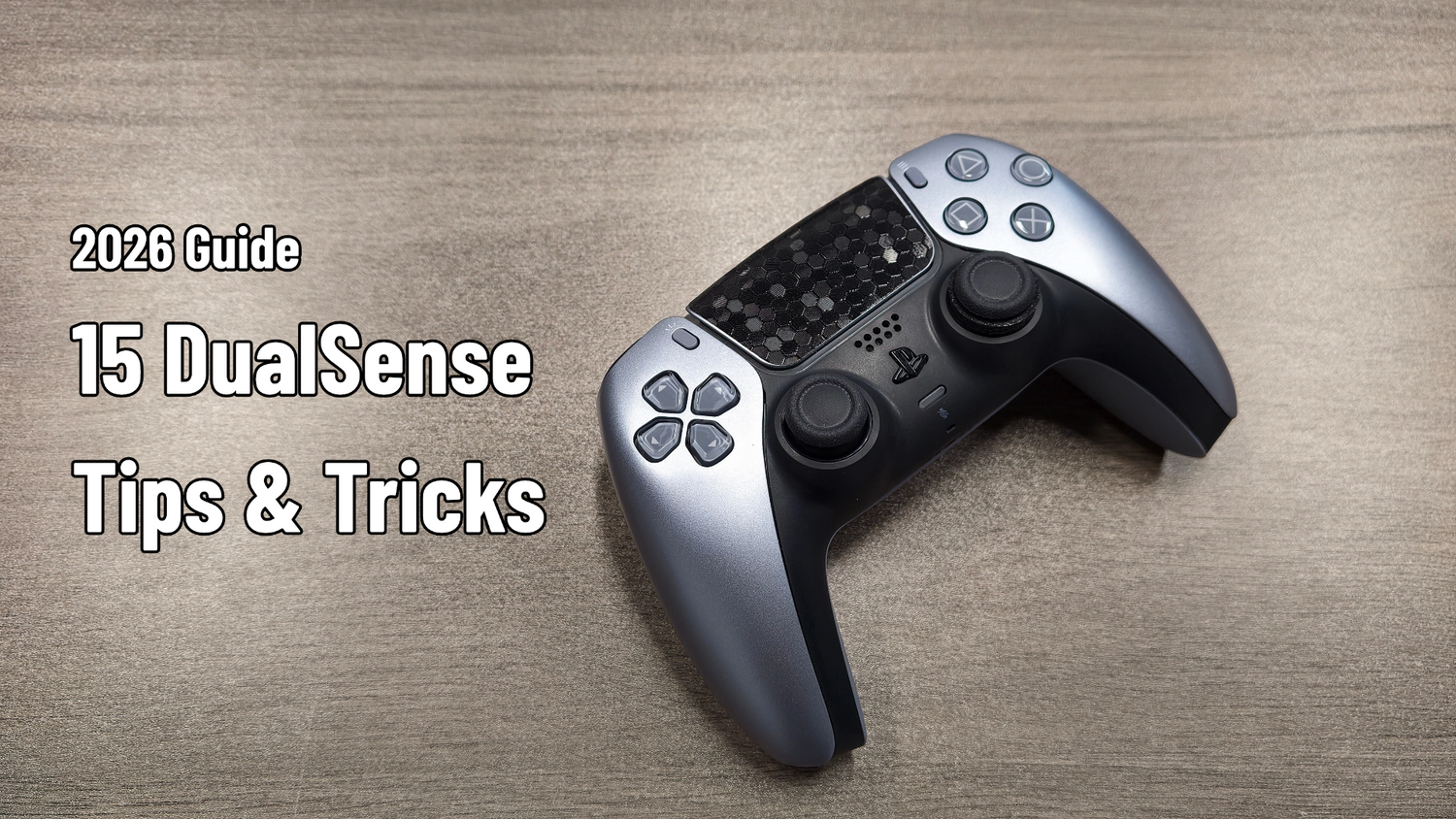
DualSense Tips & Tricks: 15 Features Every PS5 and PC Player Should Know
GadgetHyper Team
July 20, 2026 · DualSense · Guide
Sony's DualSense isn't just a replacement for the DualShock 4—it's one of the biggest generational leaps we've seen in console controllers. Adaptive Triggers, Haptic Feedback, an integrated microphone, motion controls, a touchpad, and native PC support make it one of the most feature-packed controllers available today.
The funny thing is, many players only use a fraction of what the DualSense can actually do. Whether you've just bought your first PS5 or have been using one since launch, there are plenty of useful features and settings that are easy to miss. This guide collects some of the most practical DualSense tips and tricks for both PS5 and PC users. Hopefully you'll discover something new—and if you have your own favorite tip, feel free to share it in the comments.

1. Learn the Microphone Shortcut Everyone Forgets
The small microphone button beneath the PlayStation logo does more than most people realize.
Press once: Mute or unmute the built-in microphone.
Press and hold: Mute all audio output—game sound and voice chat.
It's one of the fastest shortcuts on the console, especially when someone walks into the room.
2. Use Voice Dictation Instead of Typing
Typing with a controller has never been fun. Whenever text input supports it, use the DualSense's built-in microphone for voice dictation—far faster than selecting letters one by one. Especially handy for long messages, searching the PlayStation Store, or creating passwords.
3. You Don't Need a Second PSN Account for Local Multiplayer
If friends come over for couch co-op, simply add them as a Guest User instead of creating a new account. It's a small quality-of-life feature many PS5 owners overlook.
4. Pairing a New DualSense Is Surprisingly Easy
Just plug it into the console with a USB cable once and press the PS Button. After the initial pairing, the controller will reconnect wirelessly in the future. No complicated setup required.
5. Adjust Adaptive Trigger & Vibration Strength
Not everyone enjoys the strongest settings. Go to Settings → Accessories → Controllers and adjust Trigger Effect Intensity, Vibration Intensity, Speaker Volume, and Light Bar Brightness.
GadgetHyper Tip
Many competitive players prefer lighter trigger effects because they provide a more consistent trigger pull in fast-paced shooters. Reducing intensity can also noticeably extend battery life.
6. If Your Audio Suddenly Stops Working, Check Windows' Output Device
After connecting a DualSense to Windows, your PC may automatically switch audio output to the controller's headphone jack. If your speakers go silent, open Windows Sound Settings and make sure your preferred speakers or headset are still selected as the default output device. Also check the default microphone—Windows may switch that too.
7. Enter Bluetooth Pairing Mode
The DualSense supports Bluetooth pairing with PCs, laptops, Steam Deck, phones, and tablets. To enter pairing mode:
Turn the controller off.
Hold Create (Share) + PS Button for several seconds.
The light bar will flash rapidly; select "Wireless Controller" from your device's Bluetooth menu.
8. Fix Xbox Button Prompts in Steam Games
If you're seeing Xbox icons while holding a PlayStation controller, Steam Input may be translating your controller into XInput. If a game offers native PlayStation support, disable Steam Input for that title under Steam → Library → Right-click Game → Properties → Controller to restore □ △ ○ ✕ prompts. Results vary by game, but it's always worth checking.
9. Keep Your DualSense Firmware Updated
Sony offers an official Firmware Updater for DualSense Wireless Controller on Windows. Updates occasionally improve compatibility and performance. If you primarily use your DualSense on PC, check for updates every few months instead of waiting to reconnect to a PS5.
10. DS4Windows Is Still One of the Most Useful PC Tools
Not every PC game fully supports the DualSense. For unsupported titles, DS4Windows remains a popular community tool that can improve compatibility, remap buttons, customize deadzones, create profiles, and emulate Xbox controllers when necessary. Many experienced users recommend adjusting the Anti-Deadzone setting if the default feels too aggressive, and setting the touchpad to Pass Through for native behavior in supported games.
GadgetHyper Tip
Native PlayStation support is becoming increasingly common on PC. Before installing third-party software, check whether your game already supports the DualSense out of the box.
11. Want Lower Input Latency? USB Is Still the Most Reliable Option
Bluetooth works great for most games, but if you're playing competitive shooters or fighting games, a wired USB connection is still the most consistent choice. Compared to Bluetooth, a wired connection generally offers more stable communication, no battery concerns, and lower, more consistent input latency. For casual gaming, the difference is unlikely to matter—but if you're chasing every millisecond, plug in a cable.
12. (Advanced) Overclocking the DualSense to 1000Hz on PC
Some competitive players choose to overclock the DualSense's USB polling rate to 1000Hz using third-party tools like HidUSBF to reduce input latency. However, this is not officially supported by Sony, may cause driver issues, and some esports tournaments prohibit controller overclocking. Practical benefits vary depending on your hardware and game.
⚠️ Important Disclaimer
GadgetHyper is sharing this as community knowledge rather than a recommendation. If you decide to experiment with controller overclocking, you do so entirely at your own risk. We are not responsible for any hardware, software, or system issues that may result. For the vast majority of players, the stock polling rate is already more than sufficient.
13. Measuring Polling Rate Isn't Always Straightforward
Testing a PlayStation controller on Windows can be more complicated than testing an Xbox controller because many benchmarking utilities rely on XInput. Some users first map the DualSense to an Xbox-compatible device (via DS4Windows) before measuring polling rate. Different testing methods can produce different results, so compare measurements taken under similar conditions rather than focusing on a single number.
14. Native Support Is Better Than Ever
A few years ago, getting a DualSense working on PC often meant installing multiple utilities. Today, many modern PC games offer native DualSense support—including proper PlayStation button prompts and, in some cases, Adaptive Triggers and Haptic Feedback (usually over USB). Before downloading extra software, launch the game first—you might be surprised.
15. Don't Forget What Makes the DualSense Special
It's easy to focus on specs, but what still sets the DualSense apart are features like Adaptive Triggers, Haptic Feedback, Motion Controls, Touchpad, Built-in Speaker, and Integrated Microphone. Not every game uses them fully, but when developers do, they can genuinely make gameplay feel more immersive than traditional rumble alone.
Final Thoughts
The DualSense has been on the market for several years, yet many players still discover new features long after buying their PS5. Some tips—like muting the microphone with a single button press or fixing Windows' audio output—solve everyday annoyances. Others, such as Steam Input customization or controller overclocking, are aimed at enthusiasts who enjoy fine-tuning their setup.
That's one of the controller's biggest strengths: it gives you plenty of options to make it your own, whether you want full immersion or a lean competitive experience.
We'd Love to Hear Your Tips
What are your favorite DualSense tricks that more people should know?
Do you keep Adaptive Triggers turned on or off?
Do you play wired or over Bluetooth?
Have you tried DS4Windows or controller overclocking?
What's the first setting you change on a brand-new DualSense?
Share your own tips in the comments—we're always interested in learning new ones from the community.
Sources & Credits
This article was inspired by a video from iamchoking, combined with GadgetHyper's own hands-on experience, official Sony documentation, Steam documentation, and widely accepted community knowledge. The original content has been reorganized, expanded, and adapted for English-speaking readers to improve clarity and long-term usefulness.






Leave a comment
All comments are moderated before being published.
This site is protected by hCaptcha and the hCaptcha Privacy Policy and Terms of Service apply.